Desktop GUI
biomero-converter includes an optional desktop application for converting files without the command line. It runs on Windows, macOS and Linux.
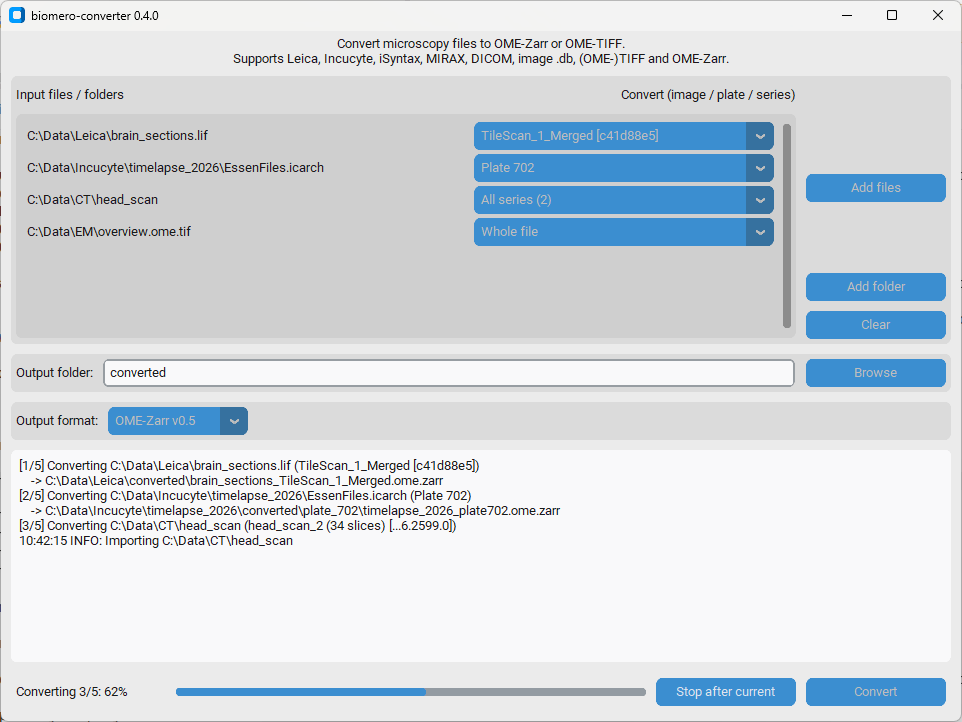
Install and start
pip install "biomero-converter[gui]"
biomero-converter-gui
The [gui] extra installs customtkinter. The command line,
Docker image and Python API do not need it.
Tk must be available in the Python installation:
- Windows: included with the python.org and conda installers.
- macOS: use Python from python.org or conda (Tk 8.6).
- Linux: install your distribution's Tk package, e.g.
sudo apt install python3-tk, or use conda.
Use
- Add files or Add folder (folder inputs such as OME-Zarr or DICOM folders); several inputs can be queued.
-
Next to each input, choose what to convert. When an input is added, its contents are read and listed:
- Leica files: their images, by name (with the start of the image UUID, or
#indexfor older files); - Incucyte archives: their plates (
Plate <id>); - DICOM files and folders: their series, by the name the converted series gets, with the number of slices.
The default All ... converts every image, plate or series separately. Other inputs (e.g. TIFF, OME-Zarr, image
.db) are converted as a whole. 3. Choose the output folder: Browse to a folder, or type a relative path (e.g.converted, or.) to write each input's output next to it:C:\Data\Leica\a.lifwithconvertedis written toC:\Data\Leica\converted. For folder inputs (DICOM, OME-Zarr) the relative path starts from the folder that contains them, so output is never written inside them. 4. Choose the output format (default: OME-Zarr 0.5, seeDEFAULT_OUTPUT_FORMATin Convert). 5. Convert. Everything is converted one after the other; the log shows each output path. If a conversion fails, the error is logged and the next one continues. Stop after current stops after the conversion in progress. One progress bar covers all conversions, including the progress within each one; the text next to it shows which conversion is running and how far it is (e.g.Converting 2/5: 40%). - Leica files: their images, by name (with the start of the image UUID, or
Closing the window during a conversion stops after the current conversion and then closes.
The lists come from biomero_converter.helper.get_selections(), which other tools can also use.
Use in another application
The interface is also available as widgets, so other customtkinter/tkinter applications can host it:
from biomero_converter.gui import ConverterFrame, ConverterWindow

ConverterWindow(master)             # the interface in its own child window
frame = ConverterFrame(parent)      # or as a widget inside an existing window
frame.add_inputs(['path/to/file.lif'])
frame.set_output_folder('path/to/output')
For applications frozen with PyInstaller, biomero-converter provides a PyInstaller hook (registered automatically) that bundles the data files and libraries it needs at runtime.
Acknowledgements
The desktop GUI started as the biomero-converter module of the UMIC Toolkit by Peter Duinkerken, a GUI toolkit for UMIC microscopy workflows, and was moved into biomero-converter so it can be used on its own. The UMIC Toolkit opens this GUI as one of its modules.